
Chapter 8 · 8.1
Which apps do you need on your phone and tablet?
With your phone or tablet, you can access your WebOké Nextcloud from anywhere. Which app you need depends on what you want to do. The Nextcloud apps are free and come straight from the makers. Only DAVx5 (for calendar and contacts on Android) costs a small amount in Google Play; it's free via F-Droid.
| What do you want to do? | iPhone and iPad | Android | Explanation |
|---|---|---|---|
| View, upload and share files; automatically upload photos; scan documents | App Nextcloud | App Nextcloud | The Nextcloud app on iPhone or iPad, The Nextcloud app on Android |
| Calendar and contacts on your phone | Built into iOS, no app needed | App DAVx5 | Calendar and contacts on the iPhone and iPad, Calendar and contacts on Android with DAVx5 |
| Tasks on your phone | Reminders (builtin) | DAVx5 with a tasks app | Tasks on your phone: Reminders on the iPhone, Tasks.org on Android |
| Chatting, calling and meeting (only in packages with Office) | App Nextcloud Talk | App Nextcloud Talk | Talk on your phone and notifications |
| Notes | App Nextcloud Notes | App Nextcloud Notes | Creating notes and using them on your phone |
| Editing documents | In the Nextcloud app or in your phone's browser, with Euro-Office | Euro-Office manual 10.7 | |
The links to the Nextcloud app, Nextcloud Talk and DAVx5 are on our download page www.weboke.nl/download, under Nextcloud. There you choose the App store, Google Play or F-Droid.

Recognise the real app
If you search for it yourself in the App store or Google Play, choose the app that's simply called Nextcloud, from the maker Nextcloud GmbH, with the blue logo featuring three circles. There's no such thing as a WebOké app: you use the official app and enter the address of your WebOké Nextcloud in it.
| App | App store | Google Play | F-Droid |
|---|---|---|---|
| Nextcloud | App store | Google Play | F-Droid |
| Nextcloud Talk | App store | Google Play | F-Droid |
| DAVx5 (Android only) | Google Play | F-Droid |
Without an app: your phone's browser
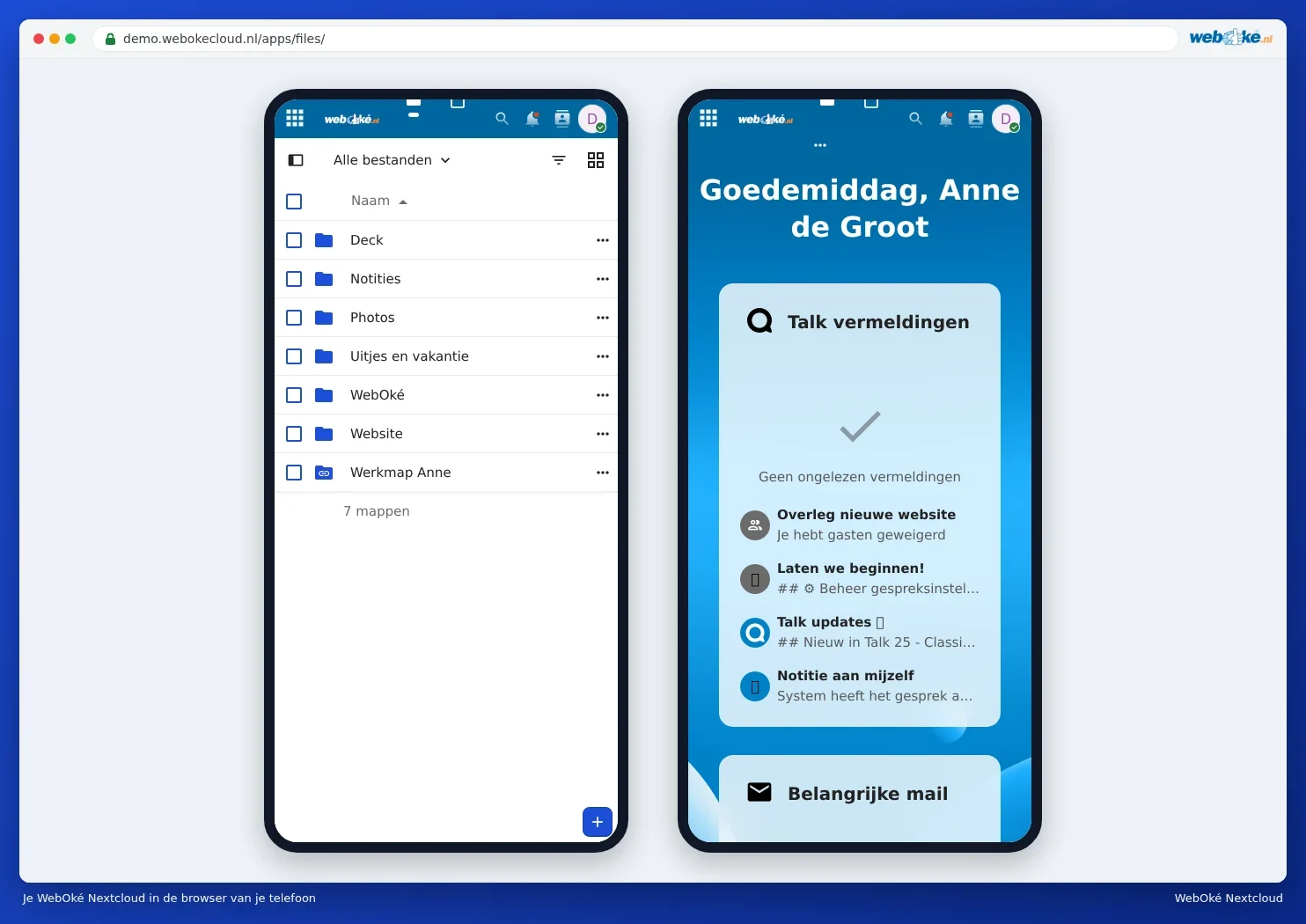
You can also simply use your phone's browser. Go to the address of your Nextcloud and log in. You'll then see a view adapted to the small screen, with the same apps as on your computer.
Logging in with the login code
Your WebOké Nextcloud is secured with a login code (two-factor authentication). The Nextcloud and Nextcloud Talk apps log in via a login screen from your Nextcloud, where you also enter the code. The app then automatically creates an app password. DAVx5 can log in the same way (Calendar and contacts on Android with DAVx5). Only for apps that can't display a login screen, such as the iPhone's calendar and contacts, do you create an app password yourself. See App passwords: when and how to use them.