
Chapter 5 · 5.7
Sharing with someone on another Nextcloud (federated sharing)
Does the other person also use Nextcloud, with WebOké or with another provider? Then you can share directly from Nextcloud to Nextcloud. This is called federated sharing. The file then appears in the other person's own Nextcloud, as if it's stored there.
Your own address: the Federated Cloud ID
Every Nextcloud user has a Federated Cloud ID. It looks like an email address: your username, an at sign, and the address of your Nextcloud. You'll find it via your profile picture in the top right, Settings and then Sharing, under Your Federated Cloud ID (1). Use the copy button next to it to copy it to your clipboard.

Sharing with another Nextcloud
- Ask the other person for their Federated Cloud ID.
- Open the Share tab for the file or folder.
- Under External shares, type the other person's Federated Cloud ID (1). Two options appear in the list: the address with an envelope icon is for sharing via email (see Sharing by email with someone without an account). For federated sharing, choose the line with the name and below it "at" and the address of the other Nextcloud, for example jan, at cloud.voorbeeld.nl.
- Choose the permissions and save the share.
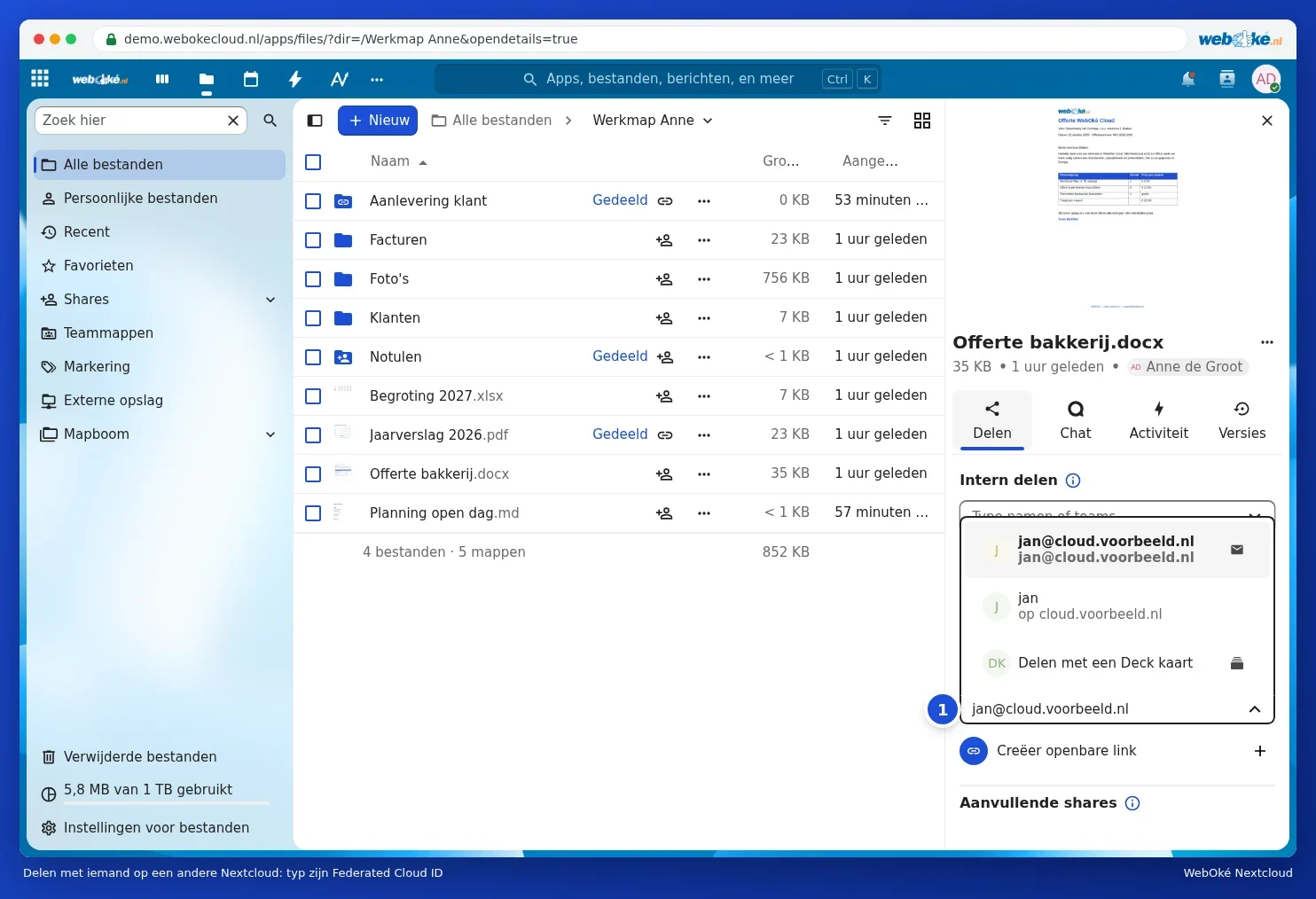
The other person receives a notification in their Nextcloud and must accept the share first. After that, the file or folder appears in their Files.
Someone shares with you
If someone from another Nextcloud shares something with you, you'll receive a notification (the bell icon in the top right). Click Accept and the share appears in your Files and under Shares.
Tip: this also works between two WebOké Nextclouds, for example between your company's package and your own Personal package.