
Chapter 9 · 9.6
Setting working hours and absence
Let your colleagues know when you work and when you're away. You set this up under Settings, Availability. You can also get there via Calendar settings, Availability settings.
Your working hours
Under Availability, fill in when you work for each day. Anyone who invites you to an appointment will then see under Find a time when you're not working (see Inviting people to an appointment).
- Click your profile picture in the top right, choose Settings and click Availability on the left.
- Click the plus sign (2) next to a day (1). A block from 9:00 to 17:00 appears; adjust the times. Do you work with a break or in two parts? Then add another block.
- Repeat this for the other working days and click Save.
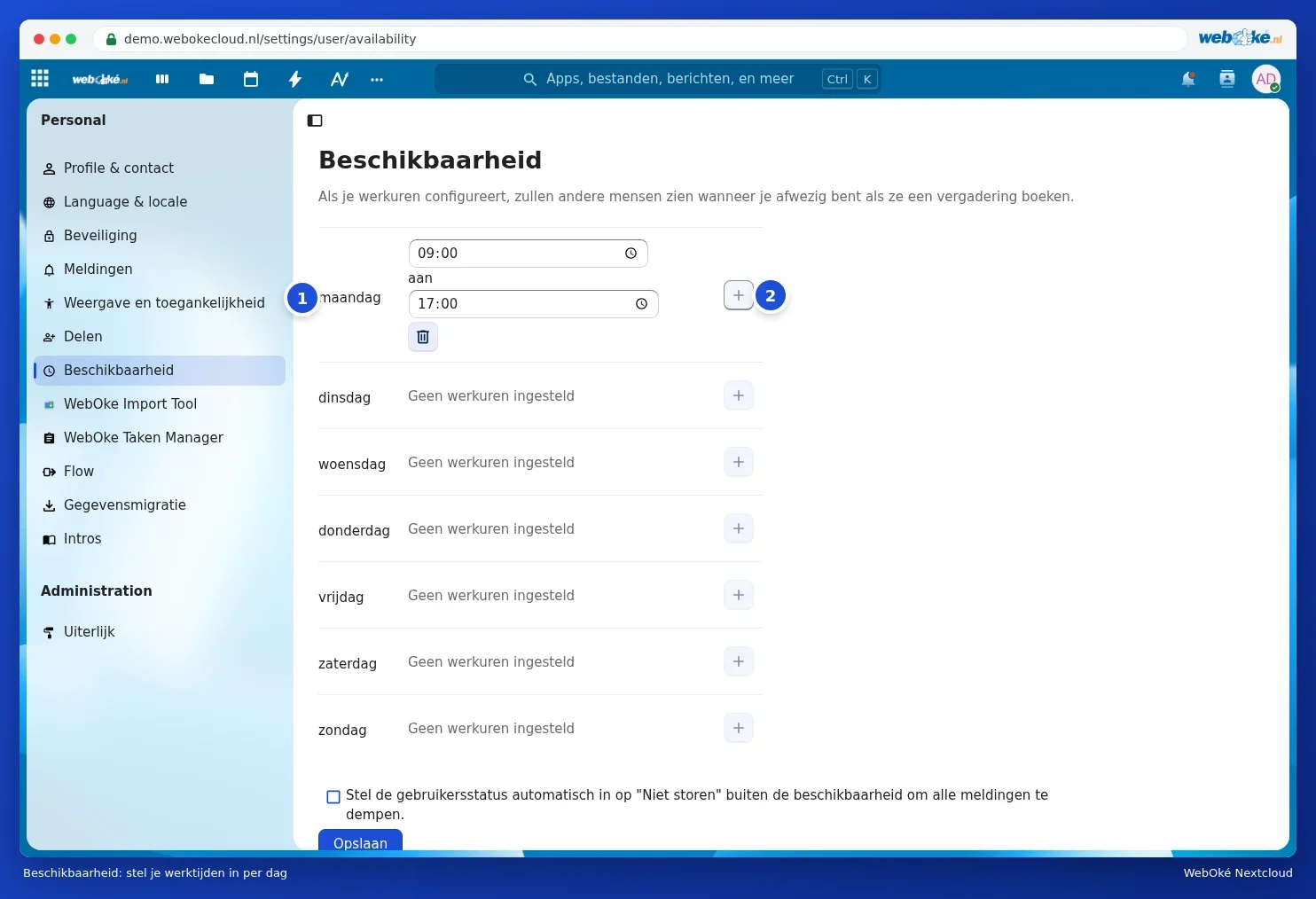
If you tick Automatically set your user status to "Do not disturb" when outside of your availability hours in order to mute all notifications, you'll no longer receive notifications from your Nextcloud outside your working hours. You can read more about your status in Setting your status: online, away or do not disturb.
Absence: vacation or leave
Going away for a while? Then fill in your absence on the same page, under Absence:
- Choose the First day and the Last day (inclusive) (1).
- Optionally choose a Replacement for absence (2): a colleague in your Nextcloud whom others can contact.
- Fill in a Short absence status (3), for example Vacationing. Others will see this next to your name.
- Write a Long absence message (4) stating when you'll be back and who's covering for you.
- Click Save (5).

While you're away, colleagues in your Nextcloud will see that you're not available, for example if they send you a message in Talk. Back earlier than planned? Then click Disable absence.
Please note: this is the absence setting within your Nextcloud. An automatic reply for emails sent to your mailbox is set up in your mailbox itself, for example in your email programme or in the webmail of your email package.