
Chapter 11 · 11.3
Inviting users and setting permissions
Watch it in a short video
Want a colleague, your accountant or your web builder to be able to access your account, without sharing your own password? Invite them as a user. Every user logs in with their own details and you decide what they're allowed to do. You arrange this under My Administration on the Users tab (1).
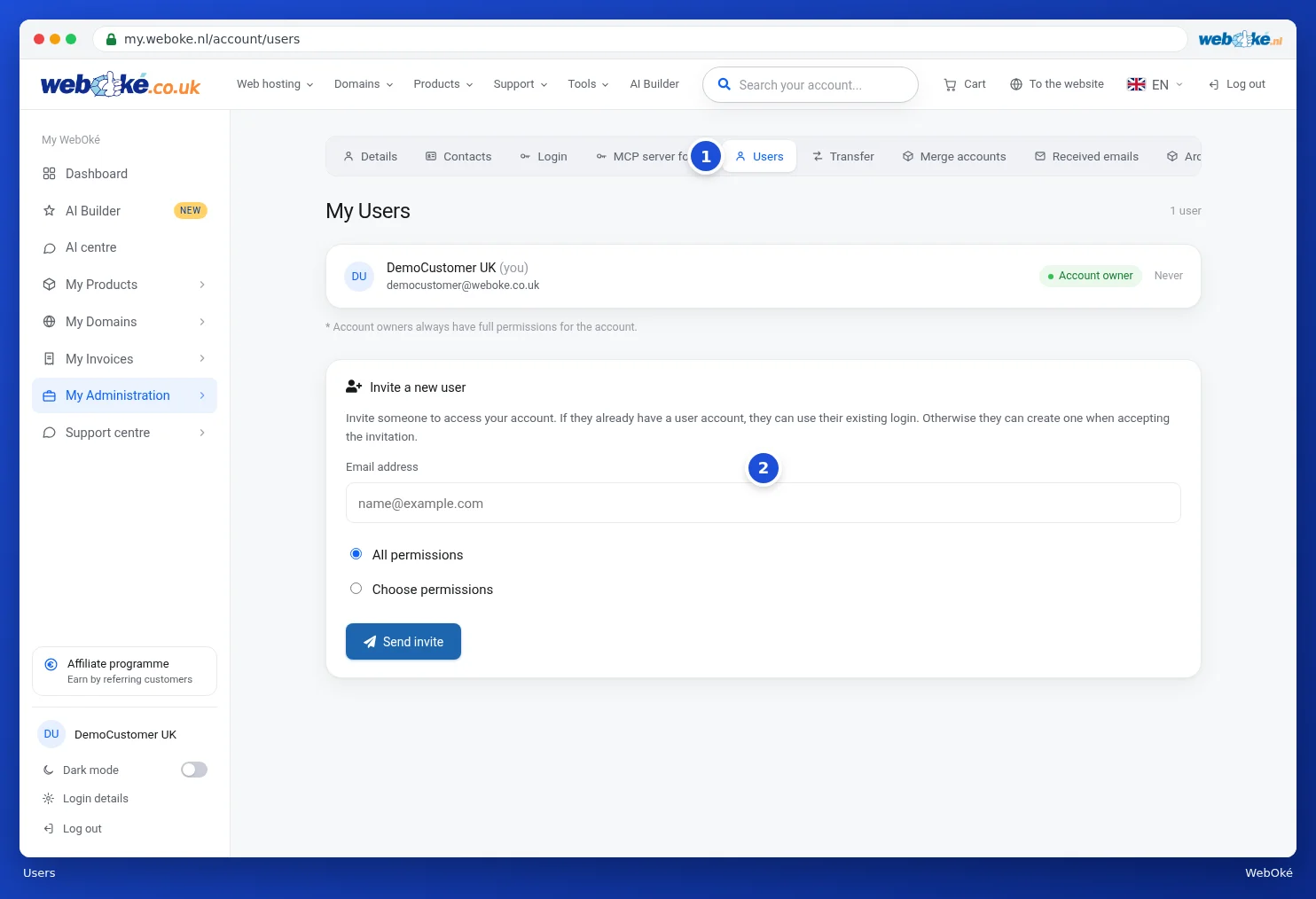
At the top are the users who currently have access, with their role and when they last logged in. The account owner always has all permissions. Only the owner can invite users and change permissions.
Inviting someone
- Under Invite a new user, enter the email address (1).
- Choose All permissions or Choose permissions (2).
- If you choose the latter, tick what the user is allowed to do (3). Each permission has a short explanation next to it.
- Click Send invite (4).

The user receives an email with a link. If they already have a user account with WebOké, they log in with their existing details. If not, they create one when accepting. After that, they can switch between their own account and yours, see Multiple accounts: switching between accounts.
The permissions
| Permission | What can the user do? |
|---|---|
| Profile | View and change your customer details. |
| Contacts | Open and manage contacts. |
| Products | View your products and services. |
| Manage Products | Perform actions on products, such as resetting a password. |
| Product SSO | Log in to a service, such as DirectAdmin, without a separate password. |
| Domains | View your domains. |
| Manage Domains | Manage domains, such as nameservers, WHOIS and transfers. |
| Invoices | View and pay invoices. |
| Quotes | View and accept quotes. |
| Support tickets | Open, reply to and manage tickets. |
| Affiliates | View the affiliate overview and request payouts. |
| Emails | View the emails we've sent to your account. |
| Orders | Place new orders. |
Pending invitations
As long as an invitation hasn't been accepted, it appears under Pending invitations, with the date it was sent.

- With Redo (1) you send the invitation again, for example if it ended up in spam.
- With the red button with the cross (2) you cancel the invitation. You'll first be asked to confirm; click OK (1) to cancel. The user doesn't receive any notification of this.

Changing permissions or revoking access
Once a user has accepted the invitation, they appear in your users list with their permissions underneath, for example Domains and Invoices. Click the button with the person icon (1) next to that user to see their permissions. Adjust the checkboxes and click Save permissions (2). With the red button with the bin icon (3) you revoke access. We'll first ask for confirmation before revoking. Revoking only removes access to your account; their own user account remains.

From then on, the user sees your account in their Switch account list. You can read how they work with this in Multiple accounts: switching between accounts.
Tip: only give someone the permissions they really need. Your accountant, for example, only needs Invoices.