
Chapter 6 · 6.6
Changing options and extra IP addresses
With a hosting package, you can add individual options without switching packages. For example, extra storage, more domains in your package, aliases or your own IP address. You do this on the Configurable options card on the product page.
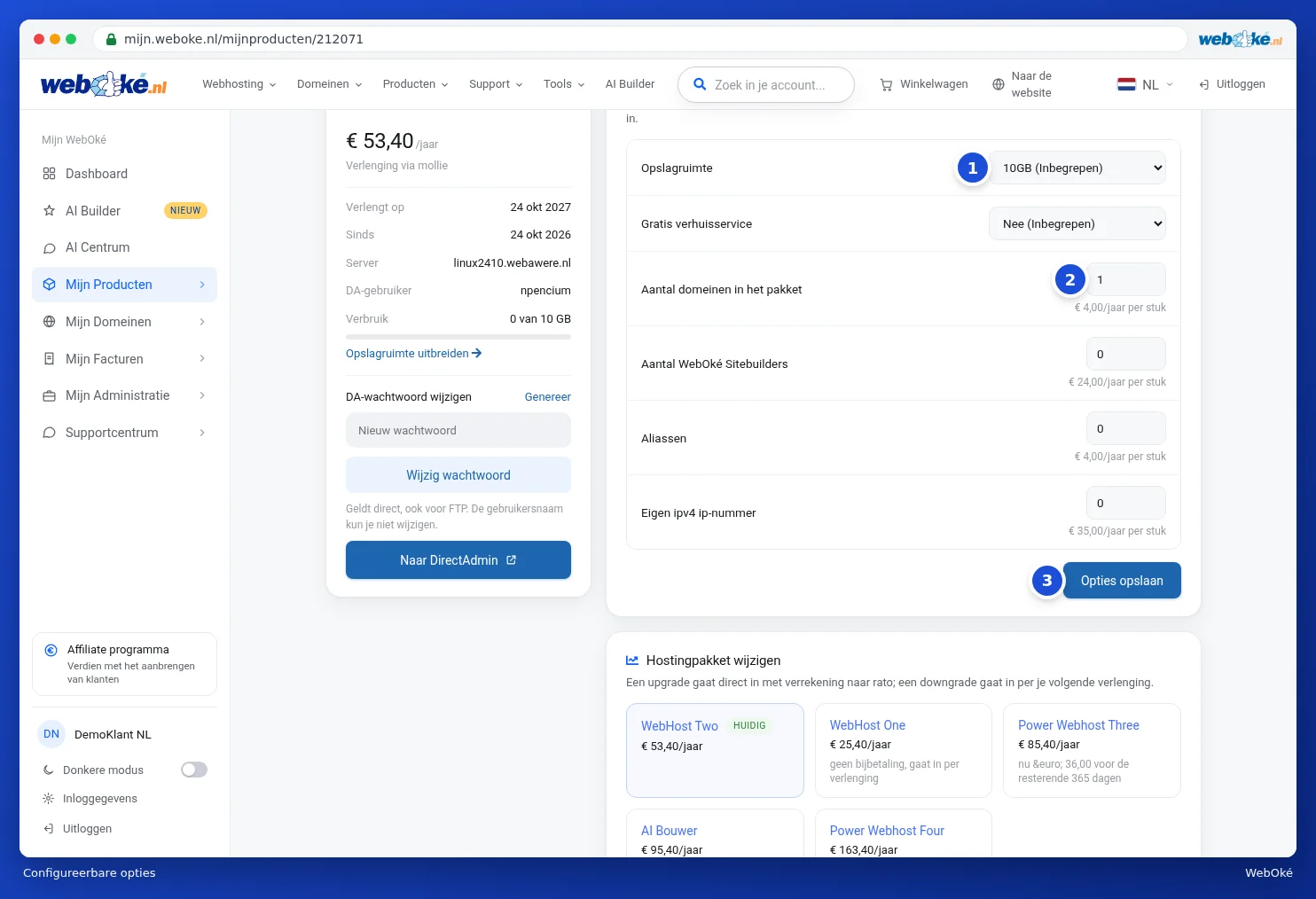
Which options are available?
The options you see depend on your package. For a web hosting package, these are usually:
- Storage space: a drop-down list with more storage. You can also do this via Expanding storage.
- Free website migration: we move your website to WebOké. See also the website migration.
- Number of domains in the package: how many domains you can link to this package, see also Domains per package and moving a domain.
- Number of WebOké Sitebuilders: extra websites with the drag-and-drop builder, see The Drag-and-drop Builder.
- Aliases: extra domains that show the same website.
- Own ipv4 IP number: your own IP address for your package.
How to change an option
- Choose a different value in a drop-down list (1) or adjust a quantity (2). Below each quantity, you'll see the cost of one extra unit.
- Click Save options (3). Nothing happens yet at this point: you'll first see what it costs.
- If the change costs something, you'll see the extra amount you pay for the rest of your period (2 in the second image) and the button is called Confirm and pay (3). Click it to place the order. You'll then go to the payment screen, and the change takes effect after payment.
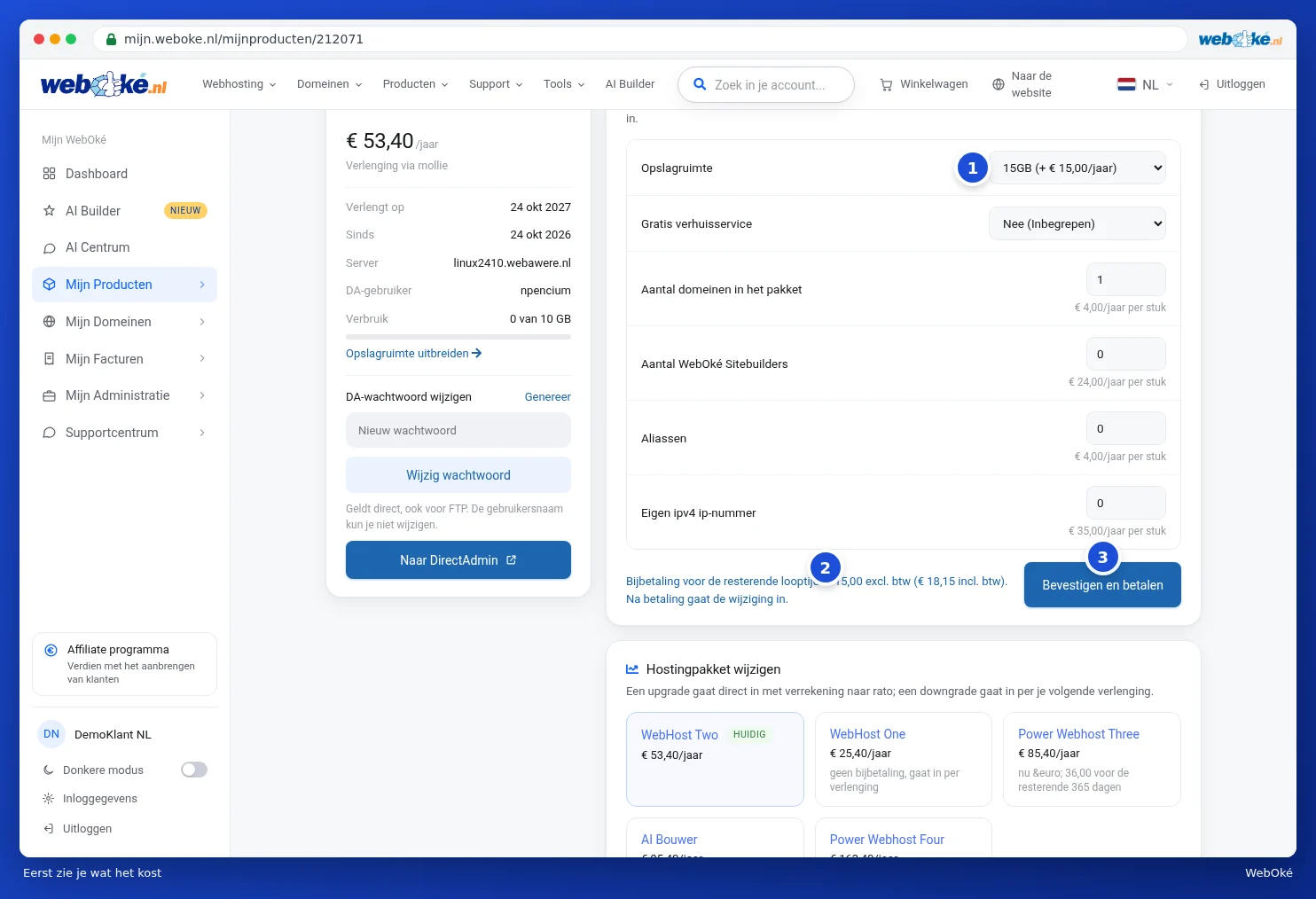
Are you lowering an option, or does the change cost nothing? Then it takes effect immediately after you click Save options. You'll see a window showing that we're processing the change, after which the page refreshes.
Tip: if you change a field after you've already seen the price, the process starts over: you'll see the new price first again.
Own IP addresses
You order your own IP address with the Own ipv4 IP number option. If you have one, the product page shows the Own IP addresses card with your IP addresses and the domain name assigned to it.
If you no longer need the IP address, cancel it using the Cancel button next to the address. In the Cancel IP address window, you'll see what happens, and you type the IP address again to confirm. Then click Yes, cancel IP address.
Please note: cancelling takes effect immediately and cannot be undone. Your websites will fall back to the server's shared IP address and will remain accessible. Mail will then also run via the shared IP, and the reputation built up on your own IP will be lost. Any DNS records you've set elsewhere pointing to this IP will need to be updated yourself. The charge will be removed from your next invoice; you won't receive a refund for the current period. Only the account owner can cancel an IP address.