Skip to content

Cookie settings

Choose which kinds of cookies you allow. You can change your choice at any time via Cookie settings at the bottom of every page. Privacy statement

Necessary

Always on

Needed to log in, keep your cart and remember your choices. These are always on.

Which cookies?
  • weboke_sessie, weboke_klant, weboke_remember: your session and staying logged in
  • weboke_basket: your cart
  • wkBtwIncl: showing prices with or without VAT
  • wok_cookies: your cookie choice, 12 months

Measures which ad leads to a visit or order, so we do not pay for ads that do nothing.

Which cookies?
  • Google Ads via Google Tag Manager (_gcl_au, _gcl_aw), up to 90 days
  • OpenAI Ads, ads in ChatGPT
  • wok_aff: which partner referred you to us (affiliate programme), 60 days

4.6

Country and language

Each country has its own site, with prices and VAT for that country.

View

Headers, footers and page numbers

Watch it in a short video

Adding page numbers 0:59

A header appears at the top of every page, a footer at the bottom. You can use them for your logo, your company details or the page number.

Creating a header or footer

  1. Go to the Insert tab and click Headers & footers (1).
  2. Choose Edit header or Edit footer.
  3. Type your text or insert an image, such as your logo.
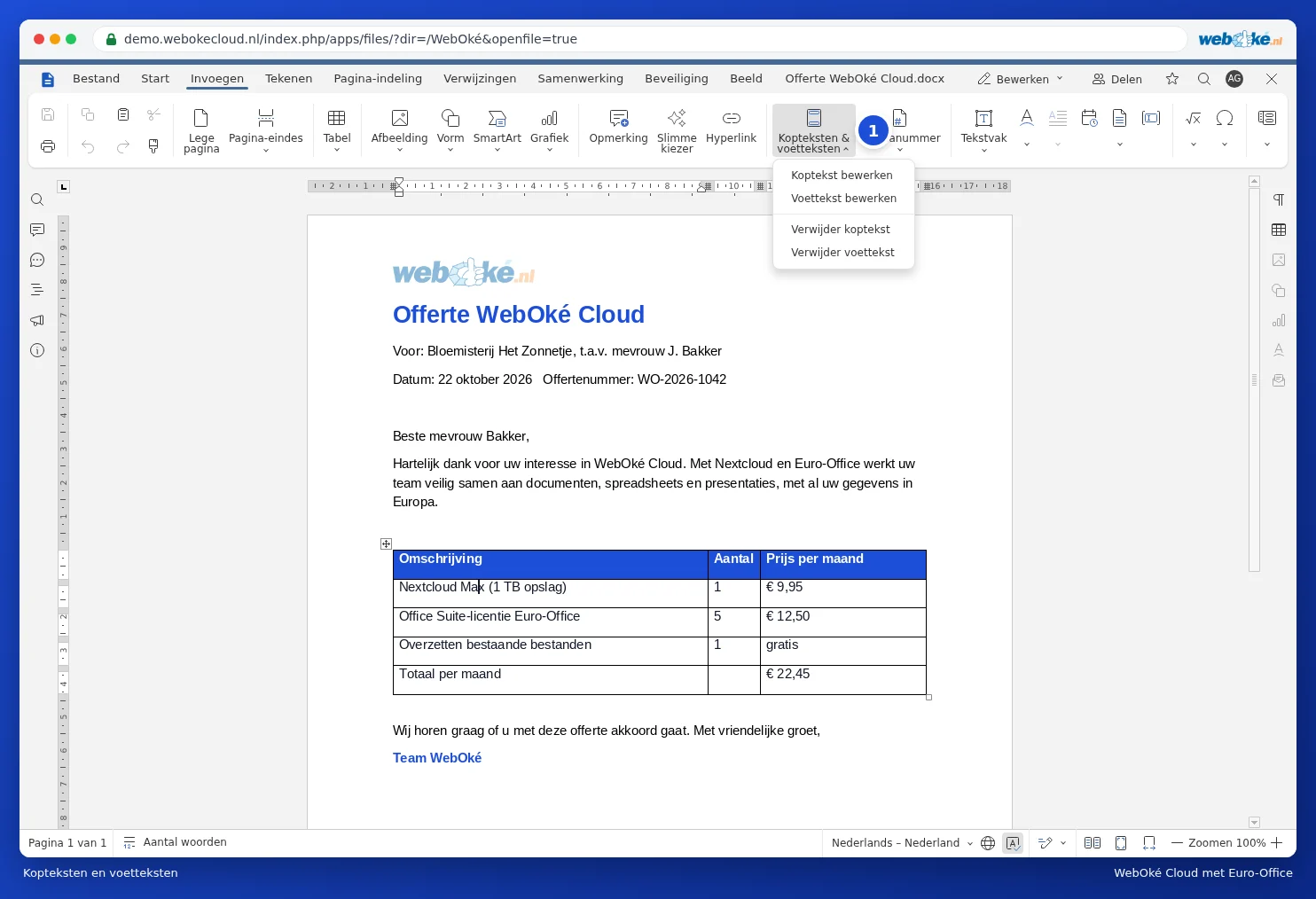
The Headers and footers menu
Editing or removing headers and footers

You can also double-click at the top or bottom of the page. The regular text then becomes lighter and you work in the header or footer. An extra tab with settings appears. Click Close or double-click in the regular text to go back.

Editing the footer of the quote
Editing the footer: the rest of the page becomes lighter

Adding page numbers

Click Page number and choose the position: top or bottom, left, centre or right. Use Number of pages to add the total, so you get something like "page 2 of 5".

The Page number menu
Choose where the page number appears

A different first page

Don't want a header on the cover page? When editing the header, tick Different first page. Use Different odd and even pages to create separate headers and footers for left and right pages, handy for a booklet.

One moment…

Set up your domains

For each domain, arrange the nameservers, the link to your hosting and who becomes the owner.

Loading your domains…