
Chapter 8 · 8.6
Version History: restoring an older version
Your WebOké Nextcloud keeps older versions of your documents. Accidentally deleted a piece of text, or did a colleague rearrange everything? Then you can easily restore an earlier version.
Viewing an older version in the editor
- Open the document and go to the Collaboration tab. Click the clock icon button, Version History. You can also get there via File and then Version History.
- On the left, you'll see the list of versions (2), with the date, time and version number. Below a version, you can see who made changes to it, for example Lisa and Anne.
- Click a version to view it. The changes in that version are shown in colour, with each person having their own colour.

Restoring a version
- In the list, click the version you want to go back to.
- Below that version, click Restore (1).
- The old version becomes the new, current version. The version you're replacing simply stays in the list. So you won't lose anything.
Close the version history using the cross at the top of the list to continue working.
Versions in Nextcloud itself
You can also restore a version without using the editor. In Files, go to the file, open the sidebar by clicking the share icon next to the name, and choose the Versions tab (1). At the top, you'll see the Current version, and below that the older versions with their time and size.
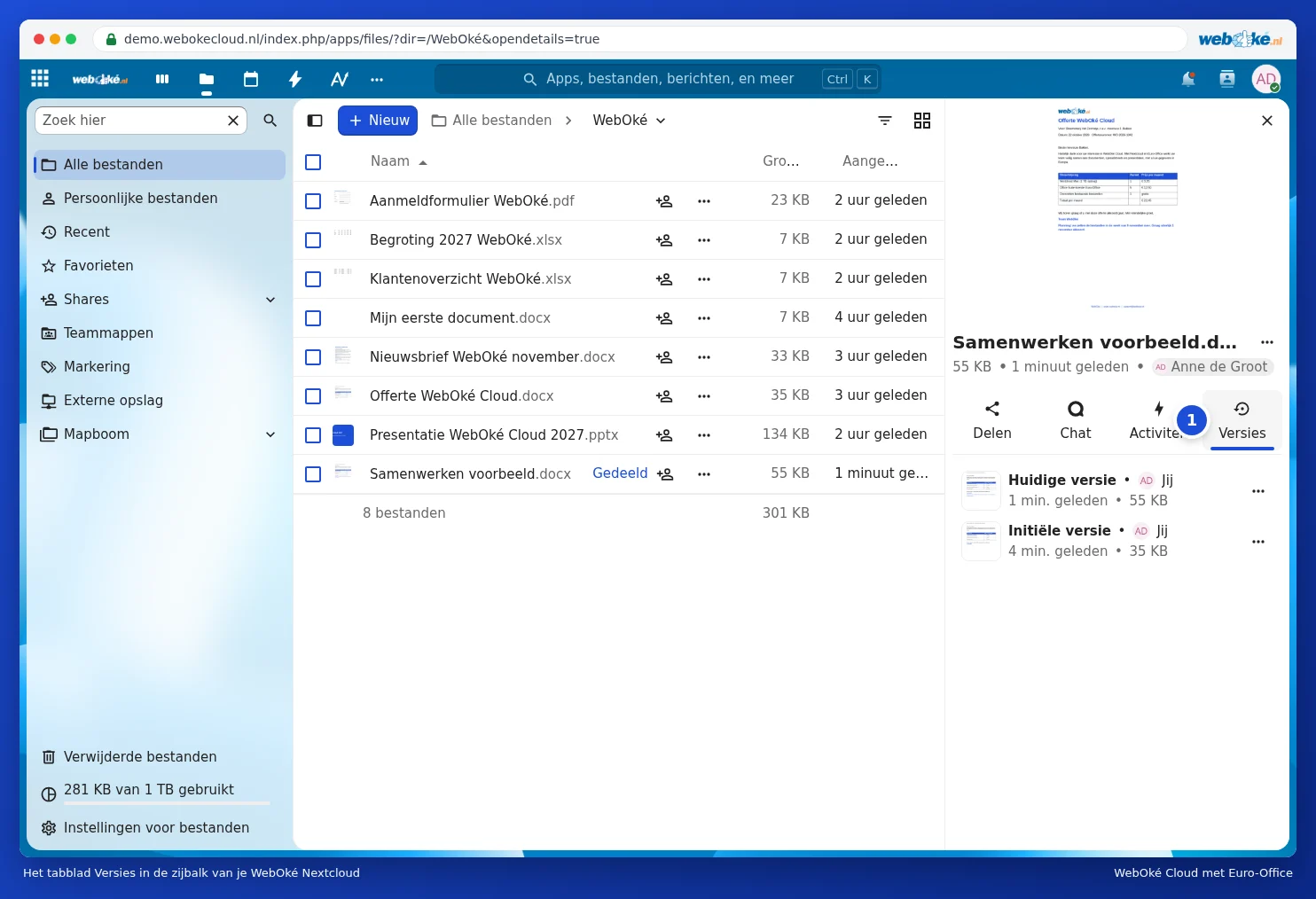
Click the three dots next to an older version. Choose Restore version (1) to restore it. With Download version, you can download it to your computer without changing anything, and with Name this version, you can give an important version a recognisable name, such as "Sent to client".

Please note: a new version is only created once everyone has closed the document. If you work in the same document all day, you'll only see today's changes as a version once the document has been closed. How long old versions are kept depends on your storage space.