Skip to content

Cookie settings

Choose which kinds of cookies you allow. You can change your choice at any time via Cookie settings at the bottom of every page. Privacy statement

Necessary

Always on

Needed to log in, keep your cart and remember your choices. These are always on.

Which cookies?
  • weboke_sessie, weboke_klant, weboke_remember: your session and staying logged in
  • weboke_basket: your cart
  • wkBtwIncl: showing prices with or without VAT
  • wok_cookies: your cookie choice, 12 months

Measures which ad leads to a visit or order, so we do not pay for ads that do nothing.

Which cookies?
  • Google Ads via Google Tag Manager (_gcl_au, _gcl_aw), up to 90 days
  • OpenAI Ads, ads in ChatGPT
  • wok_aff: which partner referred you to us (affiliate programme), 60 days

All servers have been updated and are protected against the recent PHP vulnerabilities. Still seeing an older version number, such as 8.3.35? That is correct: the security fix is included, only the version number was not changed by CloudLinux.
4.6

Country and language

Each country has its own site, with prices and VAT for that country.

View

Bullets and numbering

A list makes text clear and organised. Euro-Office offers bulleted lists, numbered lists and multilevel lists.

Three lines as a bulleted list
Select the lines and click Bullets

Creating a list

  1. Select the lines that should become a list. You can also click the button first and then start typing.
  2. On the Home tab, click Bullets (1) for a bulleted list, or Numbering (2) for a numbered list.
  3. At the end of a line, press Enter for the next item. Press Enter twice to stop the list.

Choosing a different numbering style or bullet symbol

Click the arrow next to the button. You can then choose from the library: numbers, letters, Roman numerals or other bullet symbols. Use List settings to set your own symbol, colour and indentation.
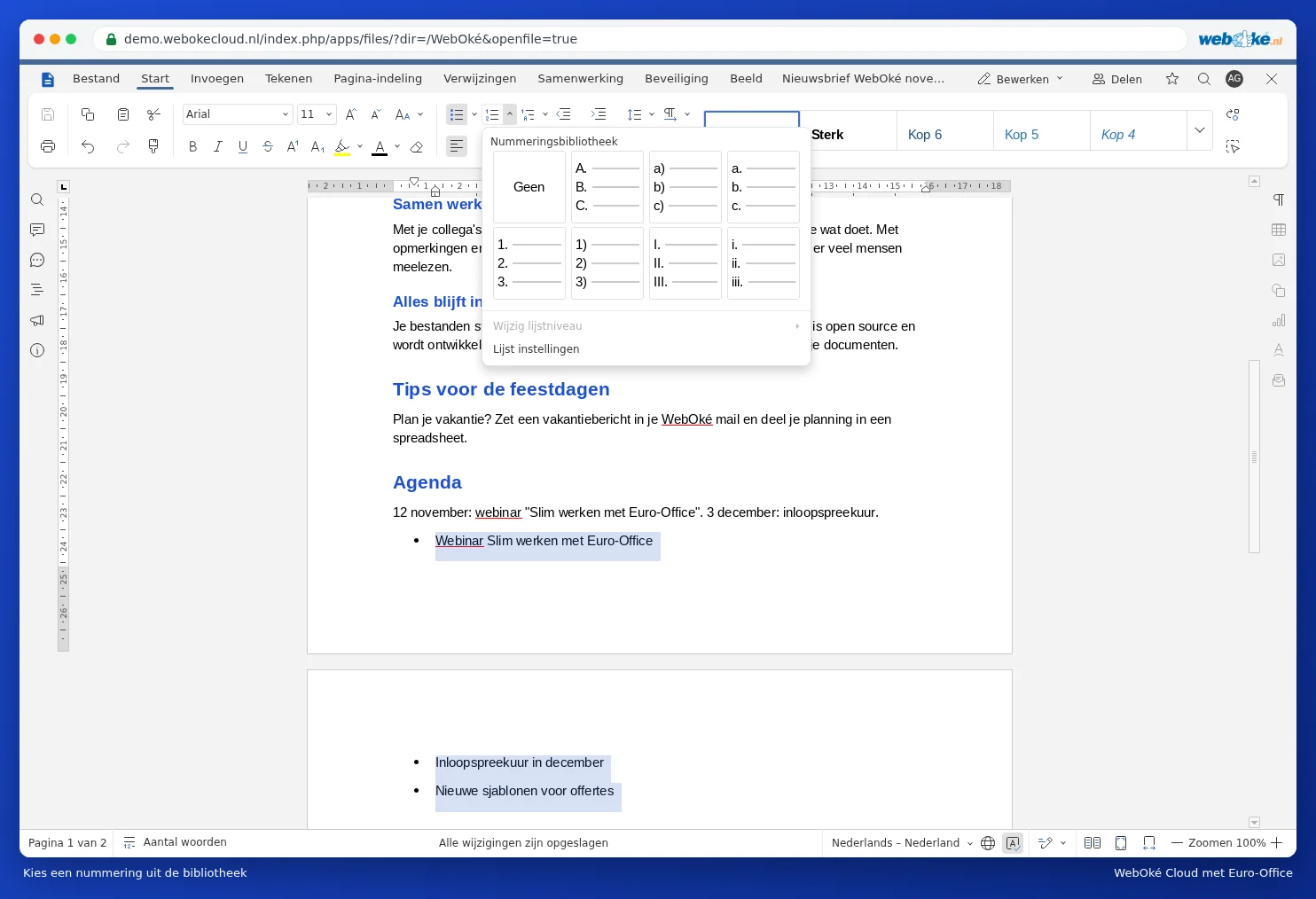
The numbering library
Choose a numbering style from the library

Levels in a list

  • At the start of an item, press Tab to move it one level deeper.
  • Press Shift + Tab to move it back one level.
  • Use the Multilevel list button to choose a fixed numbering style such as 1, 1.1, 1.1.1.

Tip: doesn't the numbering start at 1 where you want it to? Right click the number. In the menu, you can let the numbering start again at 1 or continue from the previous list, and set the starting value.

One moment…

Set up your domains

For each domain, arrange the nameservers, the link to your hosting and who becomes the owner.

Loading your domains…