
Linking Nextcloud calendar and contacts to eM Client
Do you use eM Client for your email? Then you can also add your Nextcloud calendar and your contacts to it. Whatever you change in eM Client will also appear in your Nextcloud afterwards, and vice versa.
What do you need?
- The address you use to open your Nextcloud in the browser, for example
jouwnaam.webokecloud.nlorcloud.jouwdomein.nl. - Your username in Nextcloud.
- An app password. Your regular password won't work here, because Nextcloud asks for an extra code when logging in. eM Client can't fill in that code.
Step 1: create an app password
- Log in to your Nextcloud on your computer, click your profile picture in the top right, and choose Settings.
- Click Security on the left and scroll to Devices & sessions.
- Enter a recognizable name under App name, for example eM Client, and click Create new app password.
- You'll now see your Login and a long Password. Leave this window open. The password is only shown once.
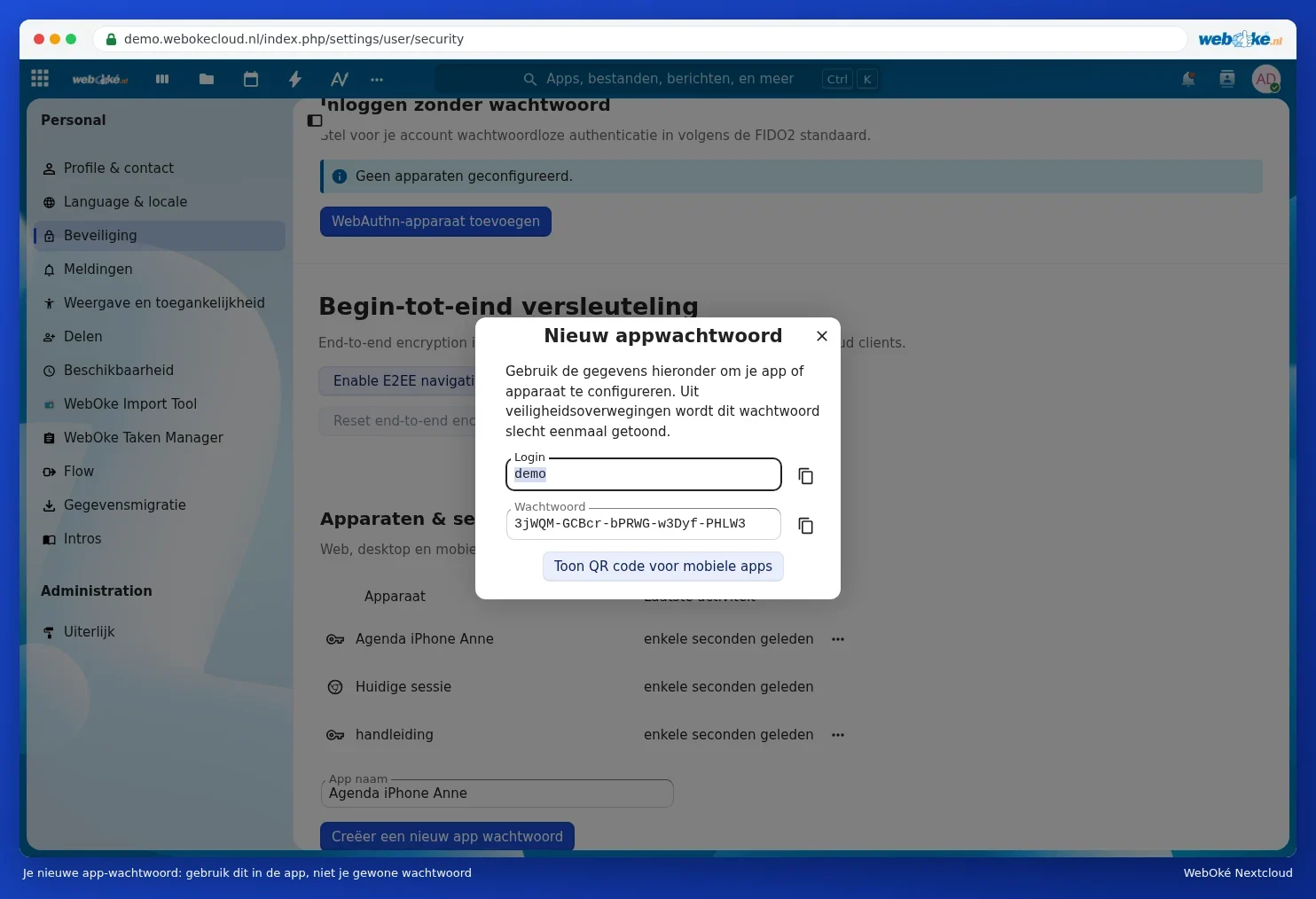
More information can be found in Creating an app password.
Step 2: add your calendar
- Open eM Client and go to Menu › Accounts.
- Click Add Account and choose Calendar › CalDAV.
- Enter the details:
Server address:  https://jouwnaam.webokecloud.nl/remote.php/dav
Username: your Nextcloud username
Password:    the app password
- Click Next. eM Client will look up your calendars and task lists. Complete the wizard.
Step 3: add your contacts
- Go back to Menu › Accounts › Add Account and choose Contacts › CardDAV.
- Enter the same server address, your username, and the app password.
- Click Next and complete the wizard. Your address books will appear under Contacts.
Doesn't eM Client find your calendars or address books automatically? Then use the full address. For your calendars that's
https://jouwnaam.webokecloud.nl/remote.php/dav/calendars/gebruikersnaam/, for your contacts https://jouwnaam.webokecloud.nl/remote.php/dav/addressbooks/users/gebruikersnaam/contacts/.You add your email separately in eM Client, with the email address and password of your mailbox. That's separate from your Nextcloud.
Isn't it working?
- The login is refused (401): you're using your regular password, or the app password was copied incorrectly or has been revoked. Create a new app password and enter that.
- The server can't be found: check the address. Start with
https://and add/remote.php/davat the end. - You only see part of your calendars: check whether you've ticked all your calendars. A calendar someone has shared with you also appears in the list.
- Your IP address is being throttled: often an old device is still trying to sync with an old password. See Frequently asked questions about calendar, contacts, and phone.
Prefer working with a different program? Then read Calendar and contacts in Thunderbird or Calendar in Outlook with CalDav Synchronizer.
Was this article helpful?