
Chapter 13 · 13.4
Importing an existing website into Installatron
Is there already a website on your package that you set up by hand, or do you want to move a website from another provider? Then you can import it into Installatron. After that, you can update it in Installatron, make back-ups of it and clone it, just like a website you installed with Installatron.
Two types of import
- The website is already on your hosting package with WebOké, for example because you set it up with FTP. Installatron then simply links to it; nothing changes about the site itself.
- The website is still hosted with another provider. Installatron then retrieves the files and database via FTP and puts them on your package. Your old site simply remains in place.
How to import
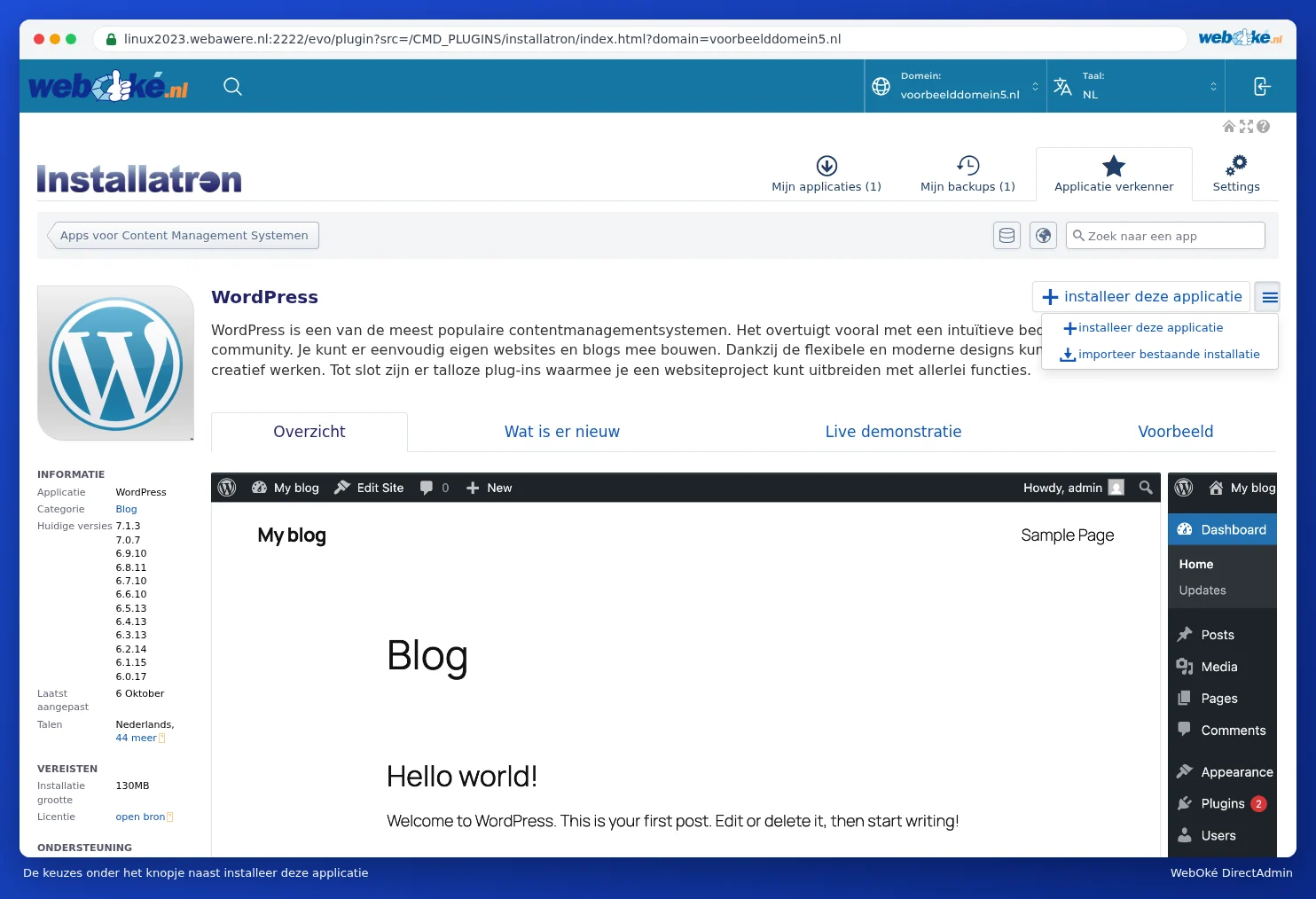
- Open Installatron and go to the App Browser for the type of website, for example WordPress.
- Next to +Install this application, click the button with the three lines ≡ and choose Import Existing Installation.
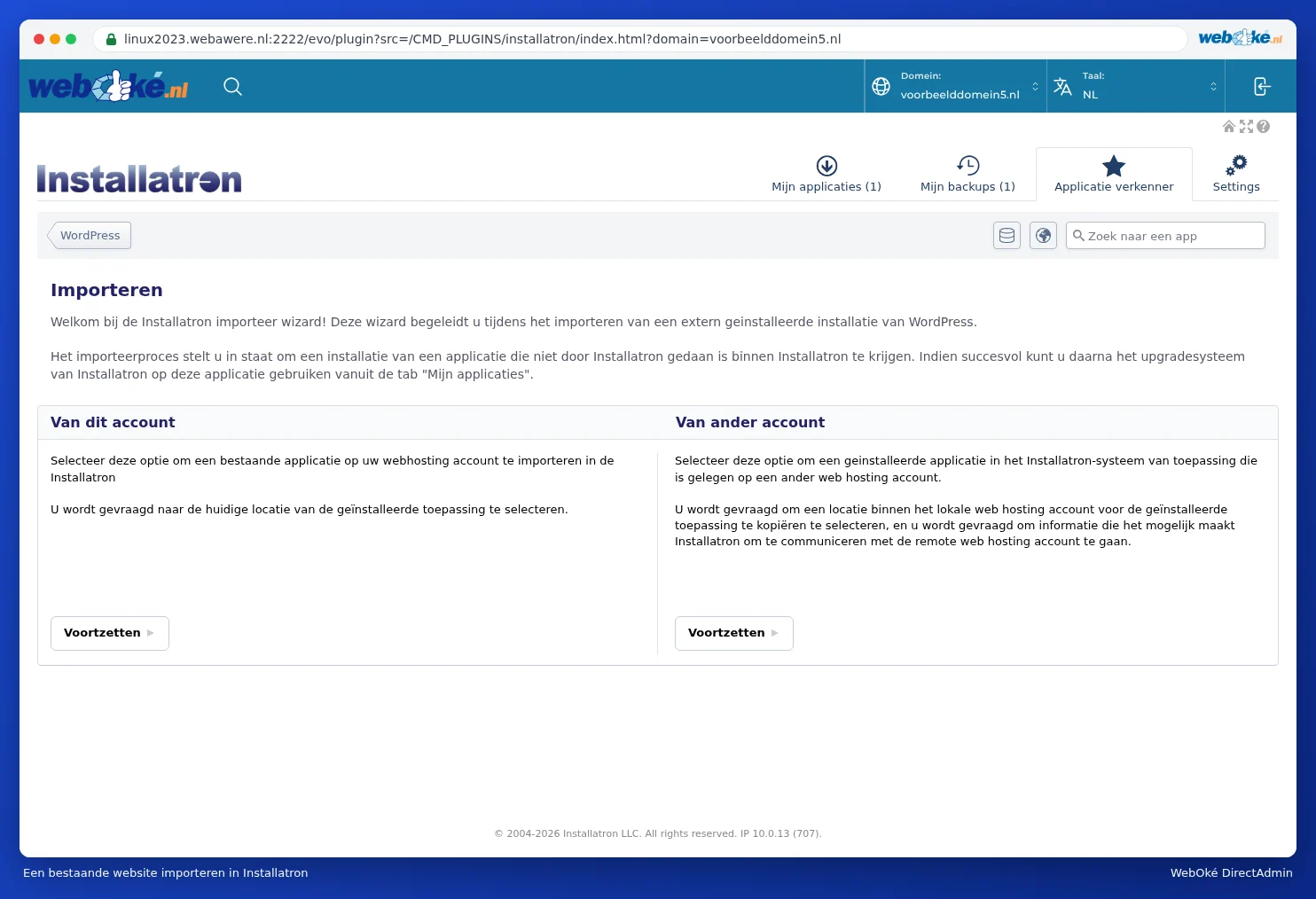
- Choose From This Account (the website is already on your package) or From Another Account (the website is hosted with another provider) and click Continue.
- Fill in the details: for From This Account the domain and the folder the website is in; for From Another Account also the details to reach the old server (such as FTP) and the location on your package where the site should go.
- Start the import. After that, the website appears under My Applications.
The easiest way: importing with the Website Manager
In My WebOké you can also do this with the Website Manager: click Import website and choose The website is already on my hosting package or The website is hosted with another provider. For WordPress with another provider, you often don't need FTP details: your WordPress admin login is enough (see Can I also do this in My WebOké? The Website Manager).
Tip: Moving a website to WebOké? After the import, your site is on your package, but your domain may still point to your old provider. Test your site first (see Testing my website before the domain has moved) and only then adjust the DNS or the nameservers.